I am a member of a Skool group called Claude At Work, which runs daily Google Meet sessions where you get to speak to three different business/Claude experts and get help with any projects you are running. It was in this group that I kept seeing the word Buzz, and eventually I asked about it and was immediately excited to try it. Why?
I wanted to look at a different way of working with AI that goes beyond just using AI-assisted coding to build software, and includes more automation and systems that could do the work for me. I asked in the Claude At Work group whether Buzz could help me with my Content Planning software. Rather than starting my computer and asking for the topics of the day, I wanted to start my computer and find the content already created and waiting for me. The answer was yes.
So I decided to install it.
- Buzz is an open-source shared workspace from Block where people and AI agents work together in channels.
- Installing Claude Code alone was not enough for me. Buzz also needed the Claude ACP adapter before it could detect Claude.
- The Windows installer is an unsigned alpha build, so expect a SmartScreen warning.
- The desktop app needs a relay to connect to. The default is localhost:3000.
What is Buzz?
Buzz is an open-source project from a company called Block and is designed to put people and AI agents into a shared workspace, an almost Slack-type environment. In this environment you can ask your agent to get work done, and you can automate workflows so they do work without you, but that need your approval. This is humans and AI agents working together.
You are probably familiar with opening an AI assistant, asking a question and receiving an answer, which works well for individual tasks but can feel disconnected from the whole project. I tend to ask questions about what I am thinking about doing in one chat, then start a new chat to get an outline or code, and when something goes wrong that is another new chat. So it all becomes a collection of chats, and when I go to search for something my experience is that it can be a nightmare, especially if what you are looking for is in the middle of a larger chat and it's 3 months later and you can't remember the original question.
With Buzz all of that information exists together in one group, maybe under a specific channel, and you may even have dedicated the task to one agent. Let's call her Henri. So now, depending on how I set Henri up, I can ask her to find out information on a bug that showed up two months ago and what we did to fix it, or ask her to find that specific chat I mentioned earlier that I was looking for, without having to go through everything myself.
One chat for the idea, another for the outline, another for the bug. Finding the answer three months later means searching them all.
One group, with channels for each project and an agent you can ask to find the bug fix or the earlier conversation for you.
What can you do with Buzz?
Buzz is a developing project, but its current capabilities extend beyond basic messaging.
Sort conversations into channels. Channels give you places to discuss particular projects, topics or tasks. Threads help keep related conversations together.
Bring AI agents into discussions. Compatible agents can be connected to Buzz and respond when they are mentioned. This gives you a way to involve an agent in an ongoing project rather than treating every interaction as a separate session.
Keep project information together. Buzz supports searchable conversations and project-related activity. The aim is to make it easier to find previous discussions, decisions and relevant information.
Work with development activity. The project includes Git-related functionality, allowing development events and code-related discussions to become part of the wider working environment.
Use automated workflows. Buzz supports YAML-based workflows with triggers such as messages, reactions, schedules and webhooks. These can be used to connect events to repeatable actions.
Not every proposed feature is complete, and the available capabilities depend on the version and configuration you use. It is worth checking the official repository to distinguish features that work today from those still being developed.
How does Buzz connect to Claude Code and other AI agents?
One of the features that interested me was the ability to connect coding agents.
Buzz supports agents that use the Agent Client Protocol, or ACP. This is a protocol that allows compatible applications and AI agents to communicate through a common interface.
The Buzz project documents support for agents including Claude Code, OpenAI Codex and Goose. The precise setup differs depending on which agent you want to use.
Once connected and configured, an agent can listen for messages directed to it in the channels it belongs to and respond through Buzz.
This is different from merely opening Claude Code in a terminal and working on a project independently. The idea is to make the agent available as part of a shared working environment.
There are, however, some important practical requirements. Installing the Buzz desktop application does not necessarily mean every agent will be ready to use immediately. The relay, agent configuration, permissions and any required adapters all matter.
What you need to install Buzz
There are two ways to get Buzz, and what you need depends on which one you choose. The packaged installer is the quicker route. Building from source is for people who want to run the whole stack, relay included, on their own computer. I used the desktop app, then needed Node.js 24 for the npm command that fixed my problem.
Packaged installer
- Download the file for your system from the latest release on GitHub.
- On Windows (x64) the file is named like Buzz_version_x64-setup_alpha-unsigned.exe.
- Also available for macOS (Apple Silicon and Intel) and Linux.
- No programming tools needed for Buzz itself.
Build from source
- Docker, to run the local relay services.
- Rust 1.88 or newer, Node 24 or newer, pnpm 10 or newer and just (or use Hermit, which fetches the tools for you).
- Clone the repository, then run the setup and build commands from its README.
- Starts the relay and the desktop app together.
Before you install Buzz
- A supported computerWindows 11 x64 (what I used), macOS or Linux. The README lists no minimum versions.
- Node.js 24Gives you npm, which installs the agent adapter. Required for building from source.
- Claude Code installed and workingCheck it with claude --version in PowerShell.
- The Claude ACP adapterInstalled globally with npm. This is the step I missed.
- Git for WindowsBuzz uses the Git Bash that comes with it for the agent shell tool.
- A relay to connect toThe app expects one at localhost:3000 unless you point it somewhere else.
The Windows build is unsigned, so SmartScreen may warn you on first launch. Click More info, then Run anyway. Check the current release notes first.
If you want a different bash-compatible shell, set BUZZ_SHELL to its path. To point the app at another relay, set BUZZ_RELAY_URL before you launch it, or switch relay inside the app.
My experience installing Buzz on Windows 11
I installed Buzz Desktop on my Windows 11 computer to see how it worked in practice. I already had Claude Code installed and can run it from PowerShell (I watched YouTube videos), so I thought it would be easy. However, during Buzz setup, Claude was reported as not installed, and I know it is and it's working.
The actual problem
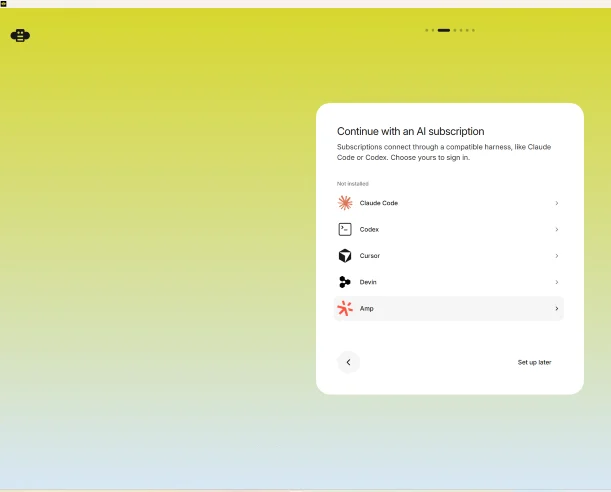
During the initial setup, Buzz displayed a screen asking me to connect an AI subscription through a compatible tool. As you can see from the image, Buzz showed Claude as “Not installed” and could not detect it. So with some help from ChatGPT (I save my Claude Code tokens for the very important stuff) I used PowerShell to investigate the problem.
| Check | Result |
|---|---|
| Claude Code installed | Yes |
| Claude Code version | 2.1.261 |
| Claude executable | C:\Users\xxxxx\.local\bin\claude.exe |
| Claude folder in Windows PATH | Yes |
| Codex CLI installed | No |
| Claude ACP adapter installed globally | No |
The key discovery was that Claude Code itself was working correctly, but the separate Claude Agent Client Protocol (ACP) adapter was not installed.
Fixing the issue
Fix the “Not installed” message in five steps
- Verified Claude Code.Ran
claude --versionand confirmed that Claude Code was installed and working. - Checked the Windows PATH.Confirmed that
C:\Users\xxxxx\.local\binwas included, so the Claude executable was discoverable from PowerShell. - Checked for the ACP adapter.Ran
where.exe claude-agent-acpandnpm list -g @agentclientprotocol/claude-agent-acp. Both checks confirmed that the adapter was missing. - Installed the adapter.Ran
npm install -g @agentclientprotocol/claude-agent-acpin PowerShell. - Restarted the computer.After restarting Windows, Buzz detected Claude Code and completed the setup successfully.
claude --version
where.exe claude-agent-acp
npm list -g @agentclientprotocol/claude-agent-acp
npm install -g @agentclientprotocol/claude-agent-acp
Final result
Buzz AI is working
- Claude Code is connected.
- Buzz has completed its initial setup and I have my API key to log in.
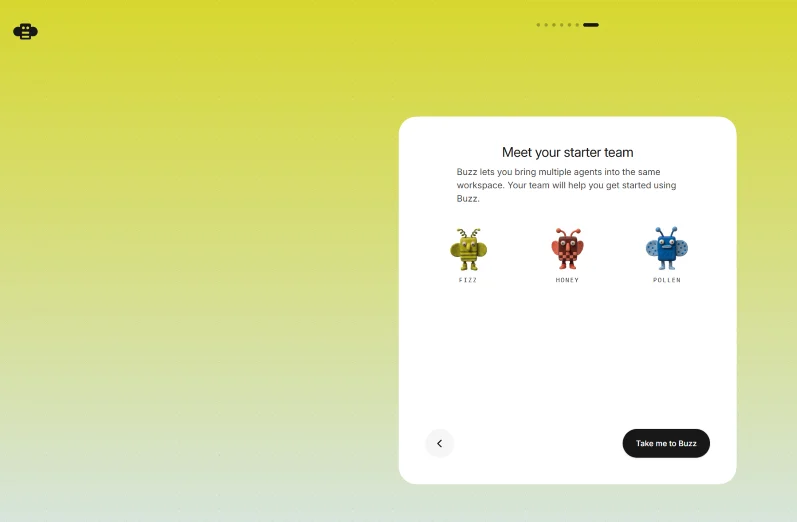
- The welcome screen is displayed and I started a new group.
The important lesson
Installing Claude Code alone was not sufficient for this Buzz setup. The missing ACP adapter was the additional component identified and installed. Restarting the computer afterwards allowed Buzz to detect the setup correctly.
Claude Code installed and working, but Buzz showed Claude as “Not installed”.
ACP adapter installed and Windows restarted. Buzz detected Claude Code and finished setup.
If I encounter the same issue again, I should check the ACP adapter installation before reinstalling Claude Code or changing my Windows PATH.
Buzz says Claude is not installed, but Claude Code works in PowerShell. What should I check?
Check whether the Claude ACP adapter is installed globally. In my case Claude Code and the PATH were fine, and the missing adapter was the cause. Install it with npm, restart Windows and open Buzz again.
Do I need Docker to use Buzz?
The local development relay depends on Docker, so you need it if you build and run the whole stack yourself. The app connects to a relay at localhost:3000 by default, and you can point it at another relay instead.
Why does Windows warn me when I run the installer?
The Windows installer is an unsigned alpha release, so SmartScreen may show a warning. Review the release notes, then choose More info and Run anyway if you are happy to continue.
How I set up my agents and what I changed
Once Buzz was working, I joined a community that Buzz hosts and got three starter agents called Honey, Pollen and Fizz. Each one has a short personality written into its instructions. Honey helps with writing, Fizz turns ideas into action and Pollen does research. Each agent is a Claude Code session that Buzz starts through the ACP adapter, so all three use my Claude subscription.
Two details surprised me. The relay for my community is hosted by Buzz, so my channels and messages sit with the hosted relay, not on my computer. The agents run on my own PC. When my PC is switched off, the agents stop. They also only act when I mention them in a message, and they only take instructions from me, so nothing gets published or changed unless I ask.
Why ten workers per agent is not a great way to work
I asked Claude Code to read the agent logs, and each agent was starting 10 workers. A worker is a separate Claude Code process waiting for a message, and 10 is the app default. With three agents that was about 30 background processes on my PC, all sitting idle most of the day.
For one person that is far more than needed. Buzz deals with one request at a time in each channel, so extra workers only help when several channels are busy at once. The rest are programs running on my computer for no reason, and if they all started work together they would use up my plan limits faster.
Changing it to 2
The setting is called Parallelism. Open the agent from the Agents page, choose Edit, expand Advanced and type a number. Leave it blank and Buzz uses its default of 10. I typed 2 for each agent.
There was a catch. Saving in that screen changed the agent template, but the copies already running in my channel kept 10, and the logs still said so after a restart. To fix it I closed Buzz, made a backup of managed-agents.json, changed the parallelism value from 10 to 2 on the three running agents and opened Buzz again.
To check it, look in the agent logs folder at %APPDATA%\xyz.block.buzz.app\agents\logs for the line that starts with buzz-acp starting. It now says agents=2. My PC went from about 30 background processes to 6, which is 2 per agent.
The managed-agents.json file also holds your agents' keys. Make your backup in the same folder and never post the file or paste its contents into a chat.
When you might need more than 2
Two works for me because I am the only person using these agents. You may want more if:
- Several people message the same agent at the same time.
- You run many channels at once, for example one per website, and agents are busy in more than one.
- Scheduled workflows start several jobs together, such as drafting for every site at the same hour.
Raise the number one step at a time, to 3 or 4, and watch how quickly you use your plan limits. Every extra worker is another Claude Code session drawing on the same subscription.
Letting Claude use my computer to ask the agents questions
Buzz agents answer only when someone writes to them inside the Buzz app. To test mine, I wanted Claude to ask them questions, so I let it use my computer. The Claude desktop app has a feature called computer use. Claude takes screenshots and uses the mouse and keyboard in the apps you allow.
It asks permission for each app before it touches anything. I allowed Buzz first. Buzz was hidden behind other windows, so I also allowed File Explorer, which let Claude click the taskbar to bring Buzz forward. The permissions have tiers. Browsers are view only, terminals allow clicks but no typing, and File Explorer allowed clicking only. Any app you have not allowed is blanked out in the screenshots it takes.
With that in place, Claude opened the Agents page, changed the settings, and typed a message to Honey asking her to list my websites from the Content Planning Studio. Then it read her reply.
- Allow only the apps the job needs, and add another only when you are asked.
- Stay at your computer and watch the screen while it works. You can stop it at any point.
- Expect small mistakes. A mention did not register a couple of times, and a few stray messages ended up in my channel for me to tidy up.
Once the agents were running properly, I connected them to my Content Planning Studio with read-only access, so they can read my content plans and assets but cannot change them.
Is Buzz free and open source?
Yes, Buzz is an open-source project, and its source code is publicly available on GitHub. You can explore the code, read the documentation and check the available desktop releases. The project also documents ways to run your own relay or use a relay hosted elsewhere.
One detail to understand is that the desktop application and the relay serve different roles. The desktop application is the interface you use, while the relay provides the shared infrastructure that connects participants and stores workspace events.
For that reason, installing Buzz Desktop is not necessarily the whole setup. The default connection expects a relay at localhost:3000, unless you configure another one or use an available hosted instance.
Windows users should also check the release information carefully. The project has distributed Windows installers marked as unsigned alpha releases, so it is sensible to review the current release notes and installation guidance before proceeding. You can find the project here: Buzz on GitHub.
Is Buzz worth exploring?
What interests me about Buzz is the idea of treating AI agents as participants in a working environment rather than as separate tools that you open only when you need an answer.
As people begin using multiple AI agents for coding, research and other tasks, keeping conversations, decisions and results connected becomes increasingly important. A shared workspace offers one possible way to approach that problem.
Buzz is still evolving, so it is important to distinguish its current features from the longer-term vision. It will not automatically make every workflow simpler, and connecting agents requires the appropriate configuration.
For me, installing it and getting Claude Code connected was a useful first step in understanding how the system works. I am interested in seeing how this kind of workspace develops and what practical uses emerge as the software matures. As I begin to connect it directly to my projects and get them working, that is where I will really see the true power of what it can do.
If you are curious about working with AI agents in a more integrated way, Buzz is worth a look. Start with the official Buzz repository, review the documentation and release notes, and decide whether its approach fits the way you work.
Is Buzz right for you?
- Which of your projects would benefit from one shared place for chats, decisions and results?Name one.
- What would you ask your first agent to do for you?
- Which tasks would you want to approve before an agent carries them out?
- Buzz puts people and AI agents in one searchable workspace, so projects stop living in scattered chats.
- Choose the packaged installer for the quick route, or build from source if you want to run the relay yourself.
- On Windows, expect an unsigned alpha installer, and install Git for Windows.
- If Buzz cannot see Claude Code, install the Claude ACP adapter with npm and restart.
- Each agent starts 10 workers by default. For one person, 2 is plenty, and the setting is called Parallelism.
- Buzz is still developing, so check the release notes for what works today.
- If you want help with Buzz or any Claude project, I recommend the Claude At Work group. This is my affiliate link, so I may earn a commission if you join.
Interactive Content Blocks
The checklist, the step-by-step guide, the writing box and the stats bar in this article are interactive blocks. Readers can tick, work through steps, write answers and keep their progress on their own device. You get seven blocks, an AI skill file that writes them for you, and one script added once. No plugin and no monthly fee.
See Interactive Content Blocks →