Open a file that Claude wrote for you in Notepad and the page is full of # symbols, double asterisks and dashes. That is Markdown. If you use Claude, ChatGPT or Claude Code regularly, it is already all over your computer.
I used Notepad to read mine for a long time, and it was hard work. So I asked Claude Code to build me a Markdown editor and reader. In less than 10 minutes I had what I needed. It now opens my Markdown files looking like a formatted document, and I can write and save my own as well.
- Markdown is plain text with a few symbols for headings, bold and lists. AI tools write in it because it is simple, compact and easy to turn into a formatted page.
- Notepad shows the symbols instead of the formatting, so long Markdown files are tiring to read.
- Free tools exist, and some are open source. I asked Claude Code to build one anyway, and it took minutes.
- It runs as a Windows program and can be set as the default app for .md files.
- It saves ordinary Markdown text files with the .md ending.
Why AI writes in Markdown
Markdown is plain text with a few symbols that mean something. A # at the start of a line makes a heading and ## makes a smaller one. Two asterisks around a word make it bold. A dash at the start of a line makes a bullet point. There is no hidden formatting, so the file stays small and almost any program can open it.
AI tools lean on it for practical reasons. Plain text is quick for a model to produce and easy to read back. A great deal of technical writing online, such as README files and documentation, is already in Markdown, so models see it constantly. One Markdown file can later become a web page, a Word document or a PDF. The instructions I give Claude Code live in a Markdown file called CLAUDE.md, and the skills it follows are Markdown files too.
Why you need a way to read it
Claude writes me plans, summaries, notes and drafts as .md files. I read them before anything gets used, and I make that call faster when the page looks like a page. This is the same text in Notepad and in a reader:
# My week
**Priority:** finish the draft
- Email the list
- Record the video
A heading that says My week, the word Priority in bold, and two bullet points you can scan in a second.
With a short file you can ignore the symbols. With a long plan, a table or a list of instructions, they get in the way.
Tools that show Markdown formatted
You do not have to build anything. Several tools will read Markdown, and some are open source.
| Tool | Cost | Formatted as you type | Open source |
|---|---|---|---|
| Notepad | Included with Windows | No | No |
| VS Code | Free | No, it has a separate preview pane | Yes |
| Obsidian | Free | Yes | No |
| Typora | Paid | Yes | No |
| MarkText | Free | Yes | Yes |
I do not like reading in VS Code. It is free and it can show a preview, but the editing view is full of # and ## symbols. I want to see the formatted page straight away, as I would in Google Docs.
There are open source products I could have downloaded. I thought I would ask Claude Code to build one instead, and it literally took minutes.
I asked Claude Code to build one
I described what I wanted: a white page, a toolbar, and text that formats itself as I type. No symbols on screen. Claude Code did not write an editor from nothing. It used an open source editor component called Toast UI Editor and built a simple page around it, with New, Open and Save buttons and a Markdown tab for switching to the raw text.
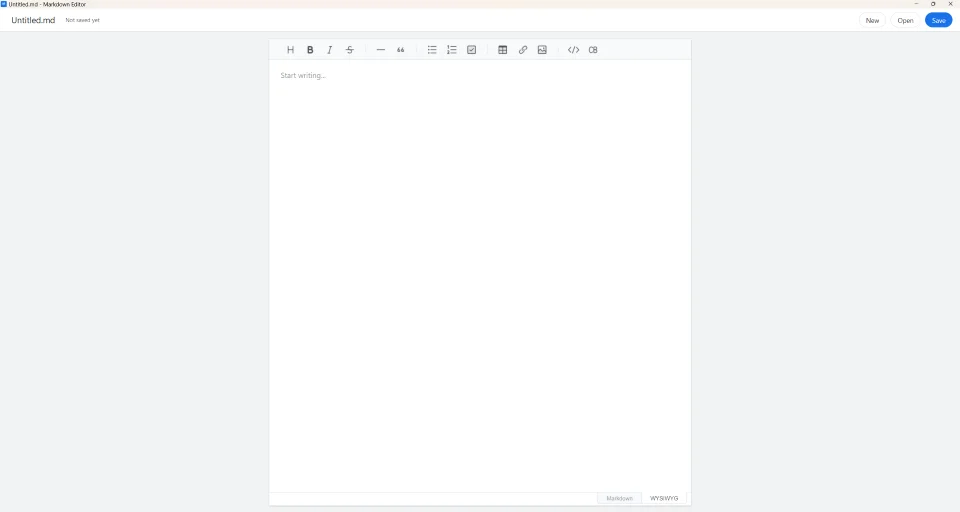
That first version ran as a web page. It worked, but I wanted a proper Windows program that opens when I double-click a Markdown file.
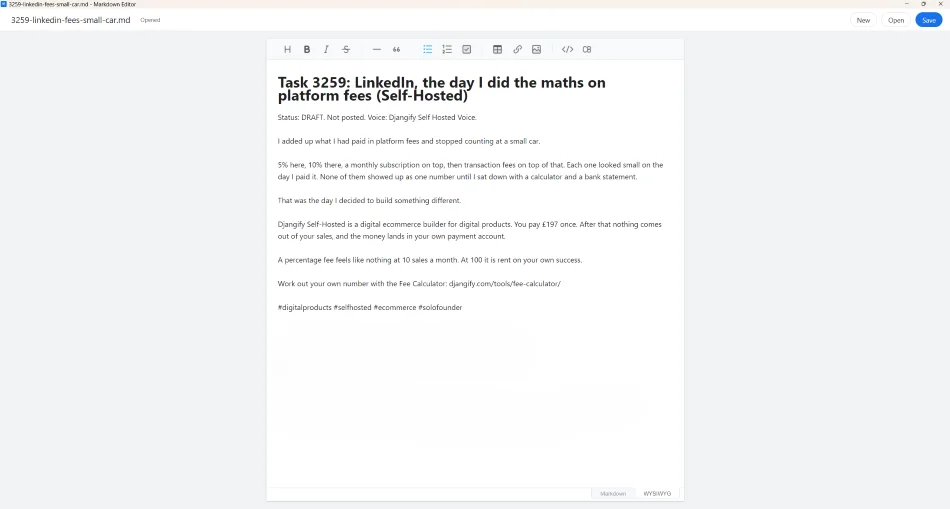
Making it open Markdown files on Windows
Windows will not accept a web page as the default app for a file type, so it had to become a real program. I asked Claude Code to turn the page into an .exe file using Electron, a tool that wraps a web page as a desktop program. It built the program, made a desktop shortcut and tested that it opened a Markdown file I gave it. The finished folder is about 270 MB, because the program carries its own browser engine.
Then I set it as the default for .md files:
Make your editor the default for .md files
- Right-click a .md fileChoose Open with, then Choose another app.
- Click More appsThen scroll down and choose Look for another app on this PC.
- Select your programBrowse to the folder Claude Code made and select the .exe file.
- Tick Always use this appLeave it ticked so Windows remembers.
- Click OKYour Markdown file opens formatted.
A program you build yourself is not signed, so Windows may show a protection message the first time you run it. Click More info, then Run anyway. Only do that for a program you built yourself.
My first Windows version showed my files perfectly but would not let me type. I told Claude Code exactly that and it fixed it. Try typing, saving and opening a file before you call it finished.
Writing and saving your own files
It is a reader and an editor. I can type in it, use the toolbar for headings, bold, lists, tables and links, and press Save or Ctrl+S. Save writes plain Markdown text, and the Save window is set to the .md ending. It does not save Word or PDF files, and I did not ask it to. Open will read .md, .markdown and .txt files.
If you want to see the raw text behind a page, click the Markdown tab at the bottom of the editor. Click WYSIWYG to go back to the formatted view.
The prompts to build your own
If you would like your own, give Claude Code these two prompts one after the other. Change the folder name to a place you choose.
Build me a simple Markdown editor and reader as a single HTML page that I can double-click to open.

I want it to look like a Google Docs page: a white page on a soft background with a toolbar. Text must look formatted as I type. I never want to see # or ** symbols while I write.

Use an open source editor component such as Toast UI Editor so the editor is not built from scratch. Download the library files into the project folder so it works with no internet.

Toolbar: headings, bold, italic, strikethrough, bullet and numbered lists, checklist, table, link, image and code. Add a Markdown tab so I can switch to the raw text and back.

Add New, Open and Save buttons. Open and Save must work with real .md files on my computer, and Ctrl+S must save. Save as plain text with the .md ending.

Before you create any files, ask me which folder to put the project in, and use only that folder. Do not make copies or backups anywhere else.

When it is built, test it with a sample .md file that has a heading, a list, a table and a code block. Tell me what you checked and what you did not check.
Now turn this editor into a Windows program (.exe) using Electron, so I can set it as the default app for .md files.

It must open a .md file when I double-click one in File Explorer. Typing, Open and Save must all work, so test each of them yourself and tell me what you tested.

Put the finished program in its own folder inside the project folder, and make a desktop shortcut for it. Do not delete anything. If something does not work, stop and tell me.

Then give me the exact steps to set it as the default app for .md files on Windows.
Name the folder in your prompt. While Claude Code was building mine it left a spare copy of the first version in my Documents folder, and I removed it afterwards.
Before you build your own
- Which Markdown files do you open most, and where do they come from?
- What would you want a reader to do that Notepad does not?Think about tables, long plans or checklists.
- Which folder will you tell Claude Code to use?
- AI tools write in Markdown because it is plain text with simple symbols that convert easily into pages and documents.
- Notepad shows the symbols, so a formatted reader makes long files much easier to review.
- VS Code, Obsidian, Typora and MarkText all read Markdown, and VS Code and MarkText are open source.
- Claude Code built me a Google Docs style editor in under 10 minutes, then a Windows program that opens .md files.
- Set the .exe as the default app, and test typing and saving as well as reading.
- It saves plain Markdown text files, not Word or PDF files.
Micro-App Idea Builder
A Markdown editor is a micro-app: one small tool that does one job for one person. If you want to build something like it, this free tool turns a person, a problem and a result into an app idea, a first-version plan and a prompt you can paste into Claude.
Try the Micro-App Idea Builder →